
Manually marking segments as walked or not walked
GPS tracking is accurate most of the time, but not always. A street you walked might not get credited, or a nearby one might be credited by mistake. You can correct this by hand, segment by segment on a walk's map.
Opening the route map
-
1Open the walk you want to correct from your walk history.
-
2On the walk's detail screen, tap View full map.
This opens a full-screen map of the route, with every nearby street segment shown by its coverage state.
What the colours mean
- Credited - this segment counts towards your coverage.
- Almost credited - close to your route, but not counted.
- Not yet walked - not counted.
Marking segments
-
1Tap a segment on the map to select it. What happens depends on the segment's current state.
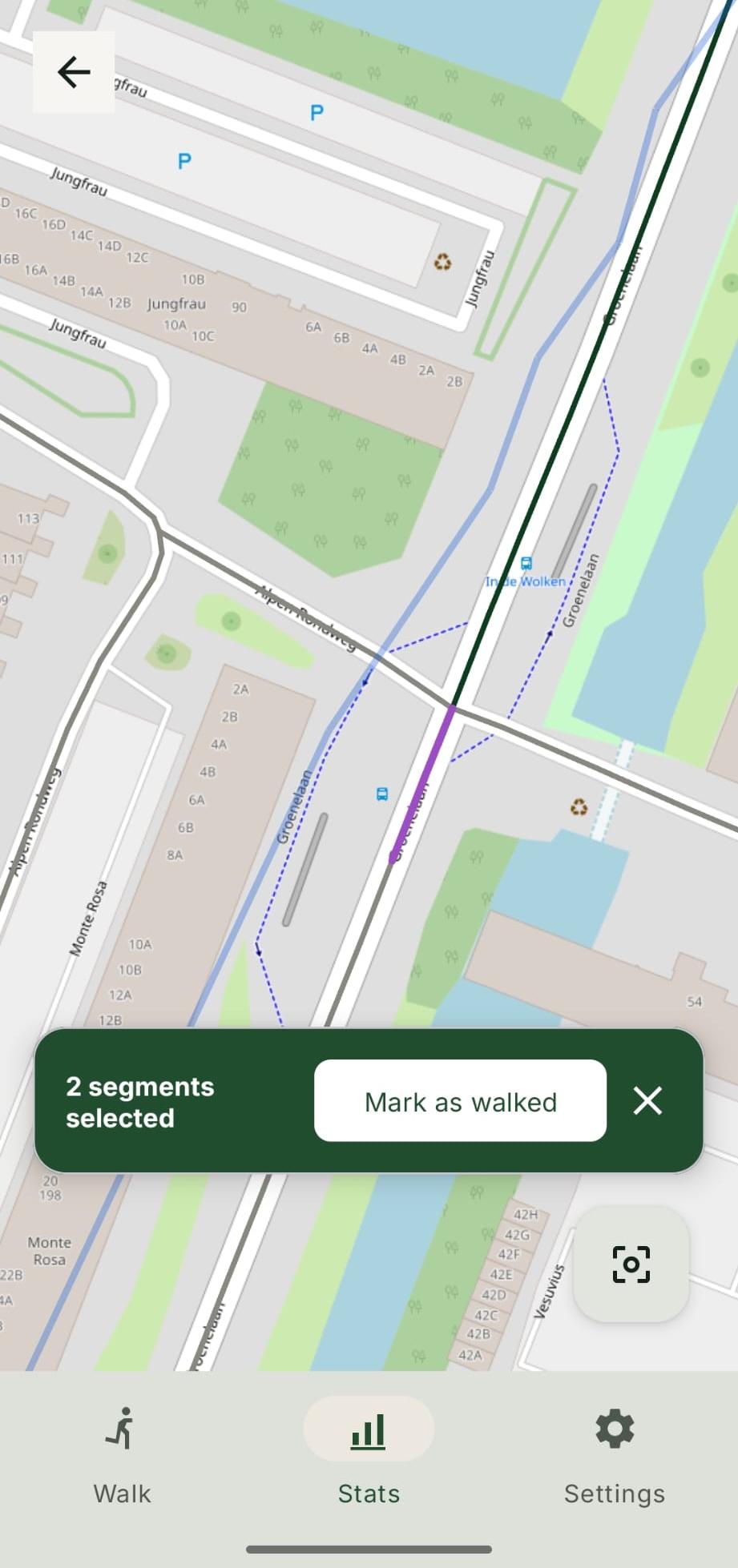
Tapping an amber or grey segment (not yet credited) selects it to be marked as walked. It turns purple.
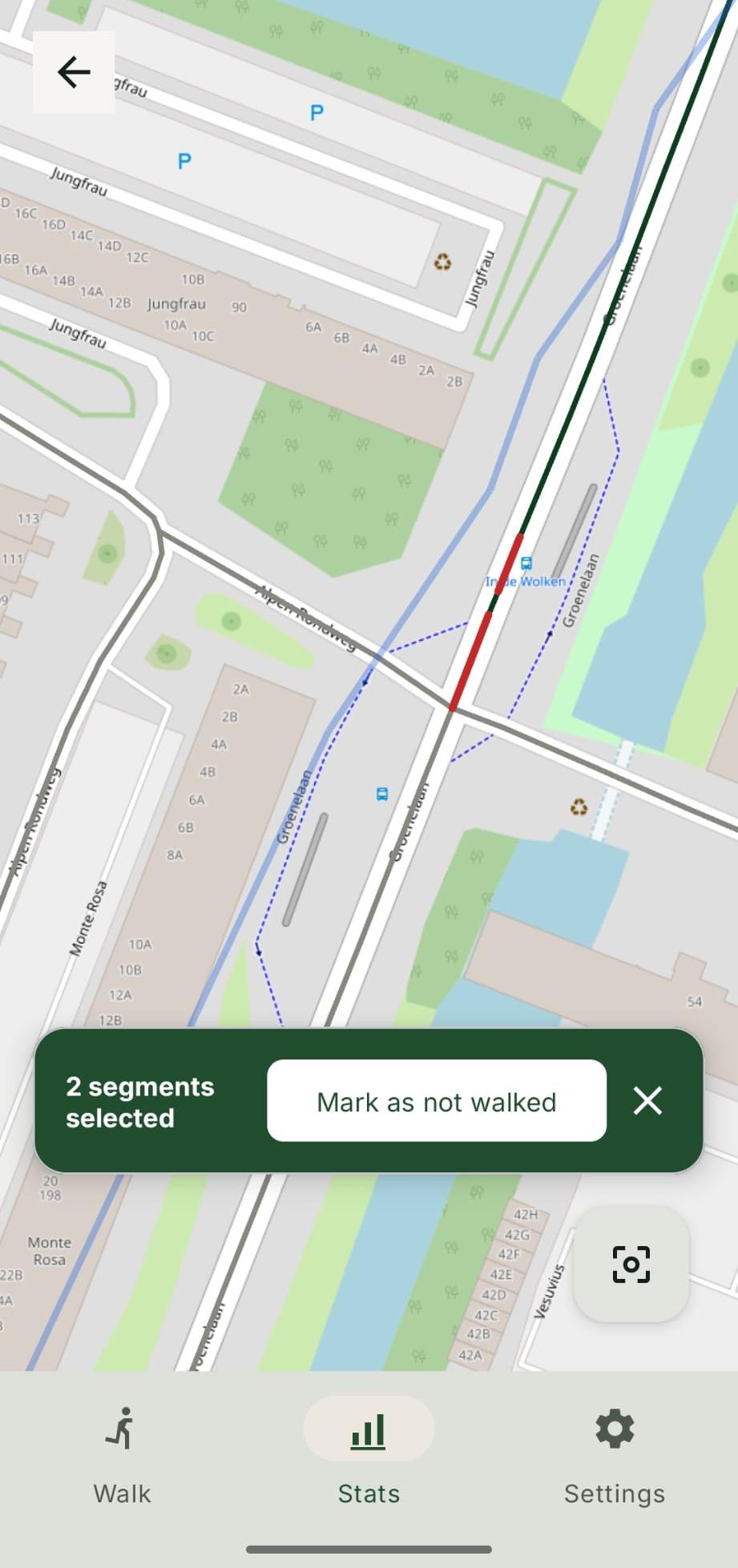
Tapping a green segment (already credited) selects it to be marked as not walked. It turns red.
-
2You can keep tapping to select more segments. A bar at the bottom shows how many you have selected and the action that will apply.
-
3Tap Mark as walked or Mark as not walked to confirm. Tap the ✕ to clear the selection and start again.
Tip: Your corrections take effect right away and are
kept permanently. Even if you refresh or re-download the city later,
CityWalker reapplies every manual change.