Finding and downloading a city
Before you can track walks, CityWalker needs the street layout for your city. This happens once. After that, the map is stored on your device and works without an internet connection.
Adding a city
CityWalker works out which city you are in from your phone's location, so adding a city is usually just one tap.
-
1Open CityWalker. The Walk screen detects the city you are in from GPS and shows its name at the top.
-
2If that city's streets have not been downloaded yet, you will see a Download city streets card. Tap it to start.
-
3CityWalker downloads the street data. Download time depends on city size. Most cities finish in about a minute. You can leave the screen; it keeps downloading in the background.
-
4Tap GO on the Walk screen to start your first walk. If you later walk into an area that hasn't loaded yet, CityWalker fetches those streets in the background and credits the walk when they arrive.
Small cities
Most cities are small enough to download as a single piece. If that is your city, no extra screen appears: the four steps above are everything. Once step 3 finishes, the whole city is ready to walk in. The next two sections cover the cases where CityWalker offers a choice instead.
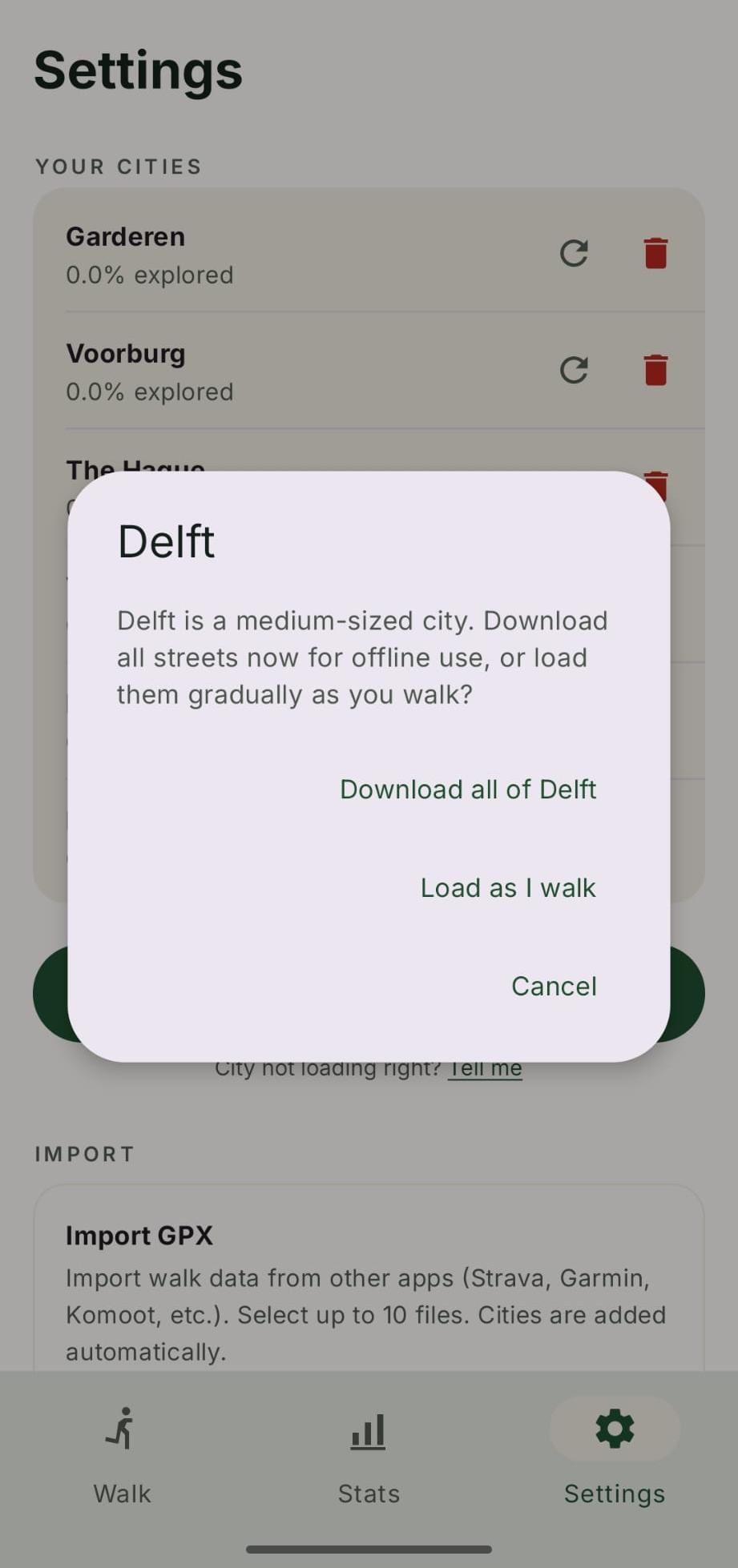
Mid-sized cities: download all, or just a small area
Not every city is split into regions. Some mid-sized cities are small enough to handle in one piece, so instead of a region picker CityWalker offers a choice: download all of the city now, or start with just a small area. CityWalker uses your current location if you are in the city, otherwise it centres the small area on the city centre.
Starting small keeps the initial download light and is useful if you only plan to walk in part of the city. You can expand coverage later from the Coverage tab. Downloading everything up front is best if you want full city-wide coverage from the start.
Large cities and regions
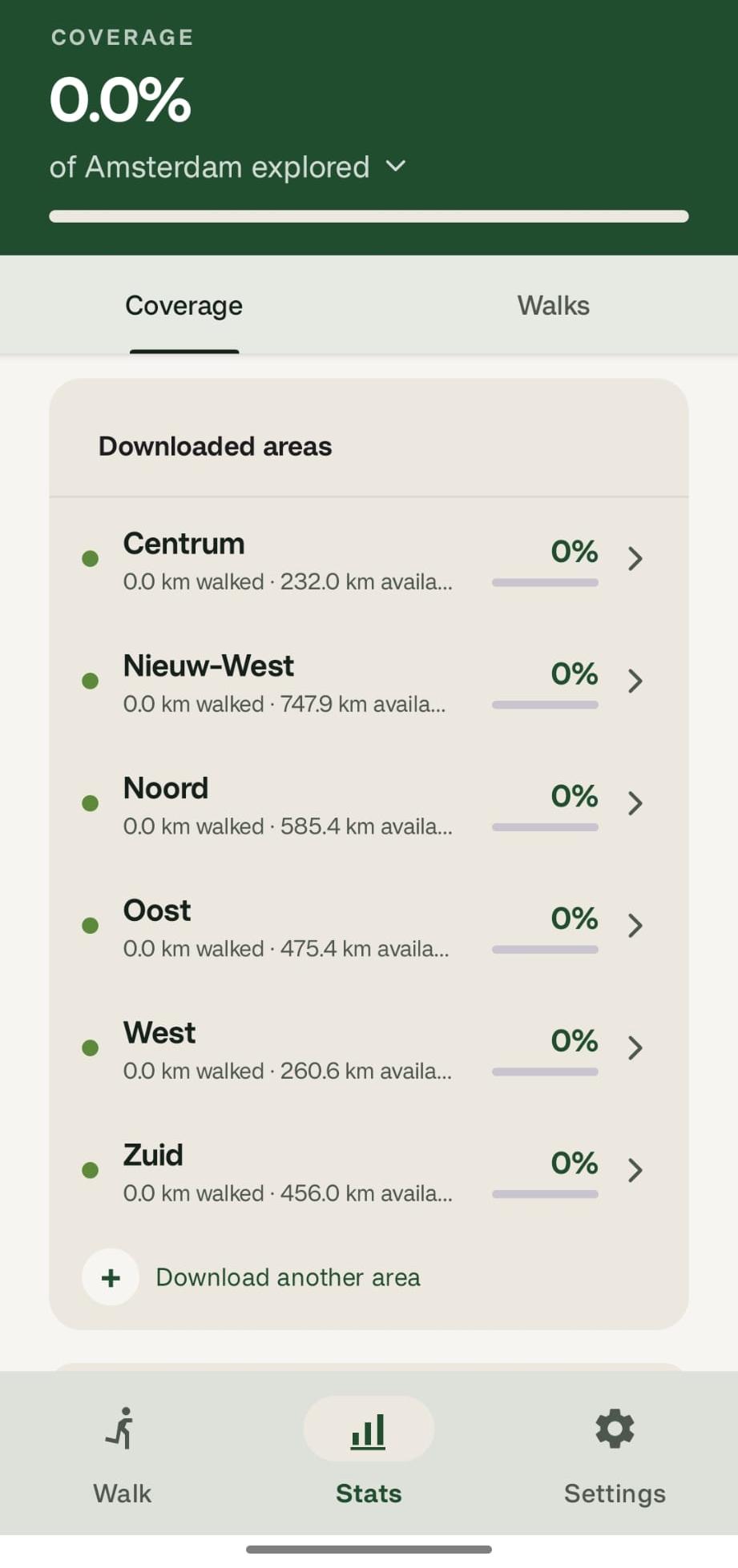
Some cities, particularly large metropolitan areas, are too big to download in one go. For these, CityWalker splits the city into regions (boroughs or neighbourhoods) so download sizes stay manageable and you can focus on the part you actually walk in.
When you add a large city, a region picker appears showing the available regions. CityWalker uses your current location to recommend the one you are in, marked You are here, so it is easy to pick the right one. Tap a region to download it.
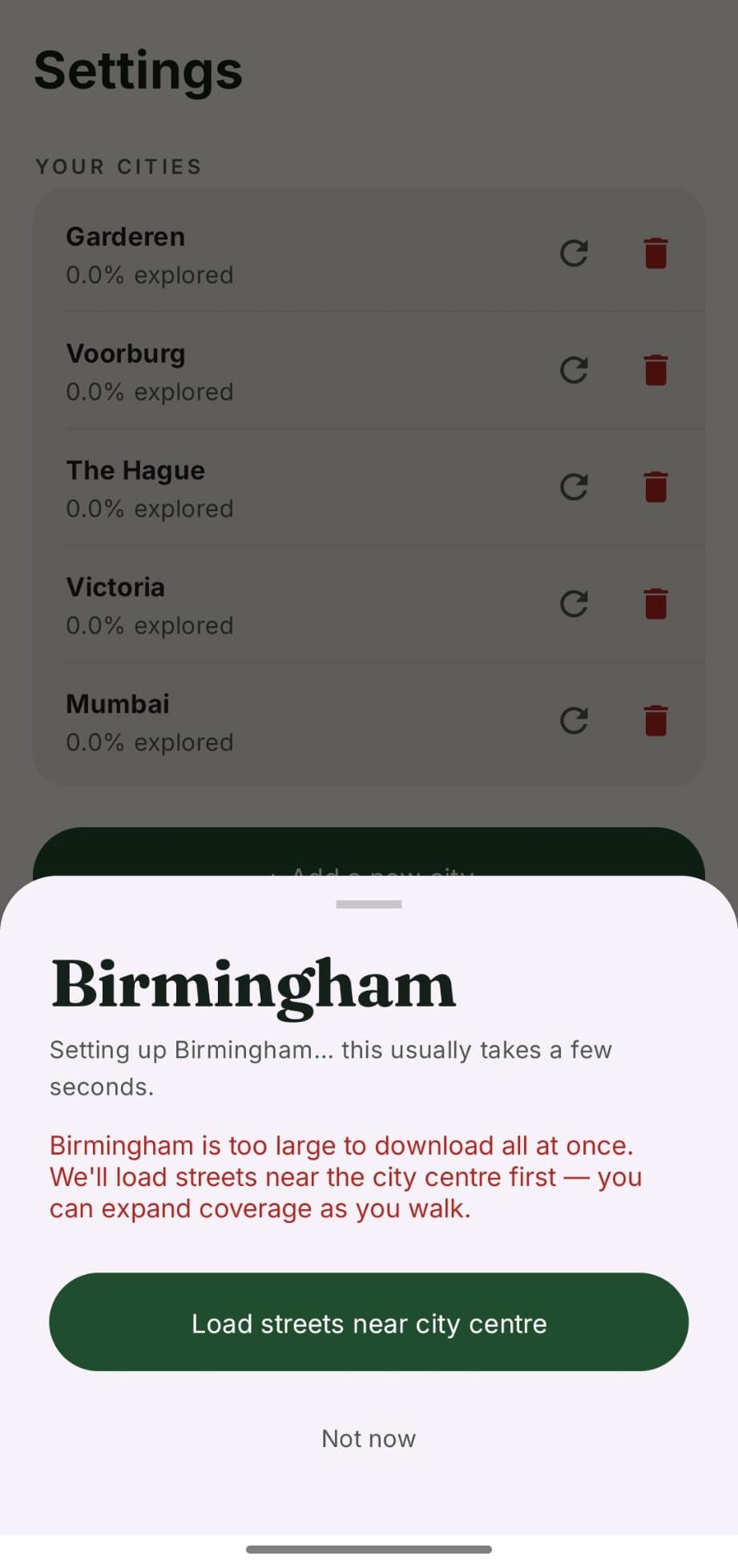
If a large city does not have downloadable regions yet, CityWalker loads a small starting area instead (around you if you are in the city, otherwise around the city centre), the same as the mid-sized option above. You can expand coverage later from the Stats → Coverage tab. If you think your city should have regions, let me know at [email protected] and I will look into adding them.
To see which cities already have regions set up, see the full city list.
When a city later gets regions
Some cities start without downloadable regions, so you download them with Just around me or Just the centre and walk in that small starting area. Later, I might add regions for that city. When that happens, the next time you open the app a banner appears on the Walk tab:
Track more of [your city]
[your city] now has downloadable regions. Pick one for a bigger map than just where you started.
Tap Pick a region to open the region picker for that city. Your existing walks in the small starting area stay credited; the new region just expands the area you can track.
If you tap Not now, the banner goes away for this session but comes back next time you open the app. It only disappears for good once you actually download a region.
How loading works
Street data comes from OpenStreetMap through a CityWalker-hosted proxy that caches responses to keep things fast. A few things to know:
- Downloads run in the background. You can leave the screen while a city loads, and CityWalker notifies you when it is ready.
- Streets load as you walk. For cities that download in a small area around you, if you start walking outside the loaded area CityWalker fetches the missing streets in the background. A Loading streets… notice appears on the Walk screen while it runs.
- Walks are credited retroactively. If a walk finishes before its streets have loaded, the walk is saved normally and its coverage is added once loading completes.
- You need an internet connection for the initial download, but once a city is loaded, map display and walk tracking work offline.
- Download stalled? Open Settings → Your Cities and use the refresh button on the city, or remove the city and add it again. If the problem persists, it may be a temporary issue upstream with OpenStreetMap, so try again in a few minutes.
Importing walks from another app
If you have already been walking with Strava, Garmin, Komoot, or any other app, you can import those walks as GPX files. CityWalker credits the streets from your past walks towards your city progress.
- Export a GPX file from your other app.
- In CityWalker, go to Settings → Import GPX and tap Choose GPX Files.
- Select up to 10 files at once. CityWalker reads them on your device and matches each route against city streets.
- If a walk's city is not in your list yet, CityWalker adds it automatically. Download that city's streets and the imported walk's coverage is credited to it.